# Asset Portal Guide

## Get Started

<details>

<summary><strong>What is the GRESB Asset Portal?</strong></summary>

<figure><img src="/files/r1il6727fbXZPHNhYEuO" alt=""><figcaption></figcaption></figure>

Participants must report environmental data at the **asset leve**l to complete certain Performance Component indicators of the Real Estate Assessment.&#x20;

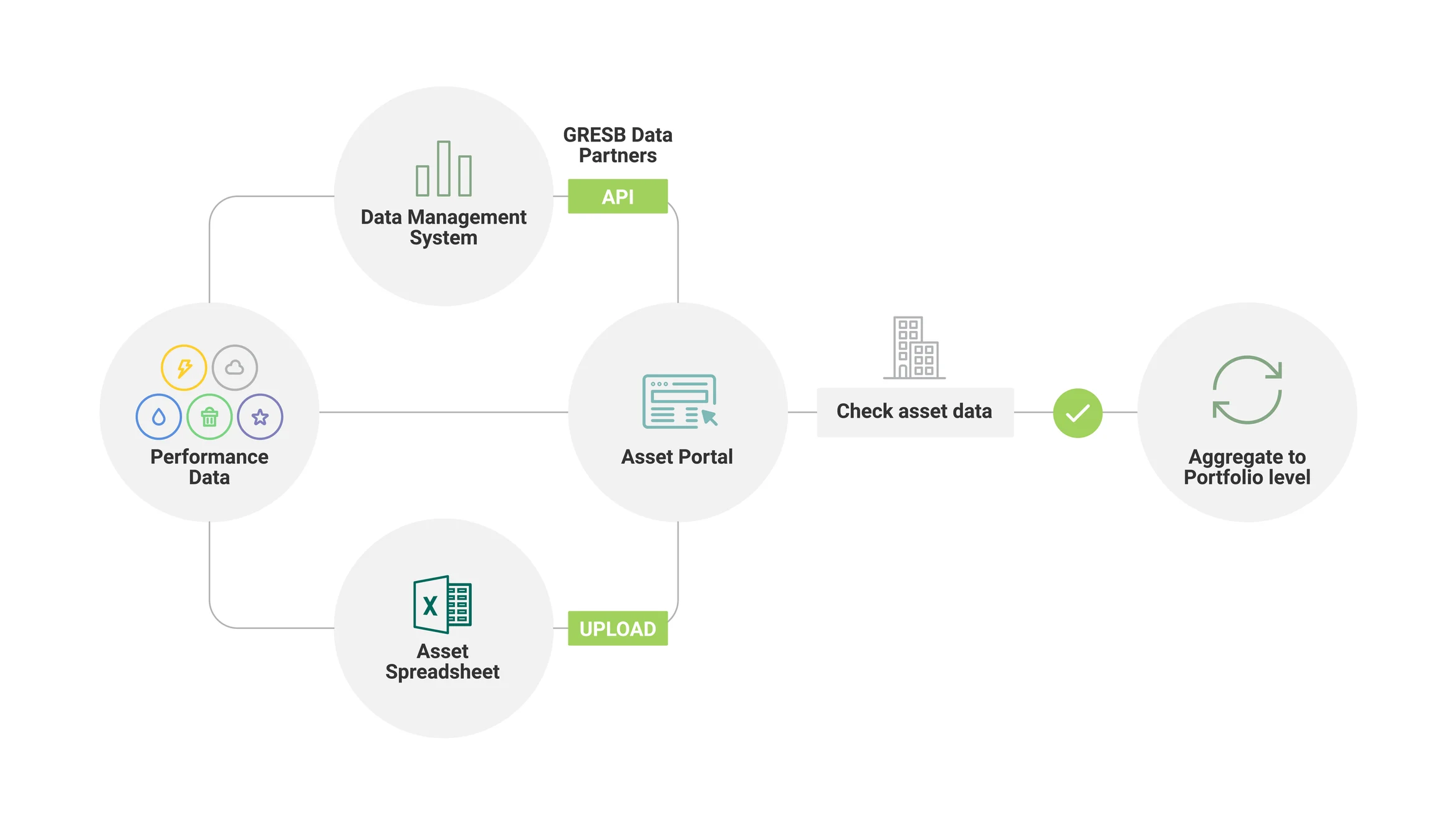
The **GRESB Asset Portal** is where GRESB collects asset-level data from participants.&#x20;

</details>

<details>

<summary><strong>Data Input Methods</strong></summary>

Participants have **three** options for reporting asset-level data:

1. Uploading the **Asset Spreadsheet**&#x20;
   1. *Suitable for most asset creation and data editing.*
2. Using the GRESB Asset **API**
   1. *Suitable for particularly large portfolios (more than 2,000 assets).*
   2. Learn more about API connections in our [API documentation](https://gresb.github.io/api-docs/).
3. Editing directly within the **Asset Portal**&#x20;
   1. *Suitable for checking uploaded data and making minor adjustments.*

</details>

## Edit, Import & Aggregate Data

{% stepper %}
{% step %}

#### **Complete the Asset Spreadsheet**

Uploading asset-level data using the **Asset Spreadsheet** is the most efficient way to submit or update asset information in bulk in the Asset Portal.

<details>

<summary>Export the Asset Spreadsheet</summary>

Download the Asset Spreadsheet **from the Asset Portal** by clicking "Export Asset Spreadsheet."&#x20;

<figure><img src="/files/s01kiP7oQrLV1v21KfIQ" alt=""><figcaption></figcaption></figure>

*If you're reporting for the **first** time, your export will be **blank**.*&#x20;

*If you're a **returning*** ***participant**, your export will be **pre-populated** with the Asset Portal's existing data.*&#x20;

* *Users can download an asset spreadsheet with data submitted to the previous assessment from the "Submitted Data" section of the Asset Analytics tab.*

<figure><img src="/files/y9xhEQgqn7sMjVccv6vv" alt=""><figcaption></figcaption></figure>

{% hint style="info" %}
*If you'd like a blank copy of the Asset Spreadsheet for reference purposes, download the public version below. It is protected and **cannot** be imported to the Asset Portal.*
{% endhint %}

{% file src="/files/QMk8IxRPX8VZDctqspys" %}

</details>

<details>

<summary>Populate the Asset Spreadsheet</summary>

Enter data into the Asset Spreadsheet. See the [Performance Component](/completingassessments/2026-real-estate-assessment/re/perf.md) section for technical reporting guidelines.

#### **To update existing asset level data:**

* Update the exported spreadsheet with information for the current reporting year. **Do not modify the Asset ID**. This will help avoid creating duplicate assets.
* Upon uploading the Asset Spreadsheet with the amended data, the Asset Portal will match the GRESB Asset IDs on the Spreadsheet to existing assets in the Portal and overwrite their information.

#### **To create a new asset:**

* Leave the field ‘GRESB Asset ID’ empty. GRESB will automatically assign the Asset ID after the upload. To update an existing asset, enter the Asset ID into the column ‘GRESB Asset ID.’ Assets with a duplicate or non-existent ID will be rejected.

#### **To mark assets as sold:**

GRESB requires participants to report all assets owned by the reporting entity, including assets purchased and sold during the reporting year.​&#x20;

However, once the entity sells an asset, the portal will no longer expect performance data from it (i.e., the entity is not required to provide performance data outside of the ownership period). GRESB's performance metric calculation and scoring models consider the length of ownership during the reporting year.&#x20;

**Participants should not delete sold assets.** Instead, they must report the sell date in the "Ownership Until" field of the asset portal.&#x20;

* If the entity sold the asset during the reporting year:
  * The portal will automatically display the number of days the asset was owned during the reporting period.
* If the entity sold the asset before the reporting year:
  * The portal will automatically classify the asset as "Sold."

**Sold assets remain visible but are excluded from assessment aggregation and validation checks.** Users can filter for sold/owned assets within the Asset Portal.

</details>

{% hint style="warning" %}
**Important**: It is not possible to modify the columns, sheet names, workbook structure, or data validation rules (i.e., dropdown, date formats, numeric formats) in the Asset Spreadsheet. Doing so would prevent the asset portal from being able to digest the spreadsheet's contents.
{% endhint %}
{% endstep %}

{% step %}

#### **Import the Data**&#x20;

Click *Import* and select the intended file.

<div align="left"><figure><img src="/files/guqYOZNzDiWOuHb4xULW" alt="" width="375"><figcaption></figcaption></figure></div>

> Users can expect the upload to load for several moments, depending on the size of the portfolio.&#x20;
>
> However, if load times exceed several minutes it is likely that the Asset Portal cannot process the spreadsheet. Please try removing the file, reviewing it against the list of common import disruptions below, and re-uploading it.&#x20;

<details>

<summary>Import Summary &#x26; Common Disruptions</summary>

When the import is complete, the portal will summarize the number of:

<table><thead><tr><th width="207.80859375"></th><th></th></tr></thead><tbody><tr><td><strong>Newly added assets</strong></td><td>Were not previously included in the entity's asset portal and have been successfully imported as new entries</td></tr><tr><td><strong>Updated assets</strong></td><td>Previously existed in the entity's asset portal and have been updated with the latest information from your upload.</td></tr><tr><td><strong>Failed assets</strong></td><td><p>Could not be imported due to missing or invalid information (<em>more details below</em>).</p><ul><li><i class="fa-circle-info">:circle-info:</i> Users can export a list of failed assets to make targeted corrections.</li></ul></td></tr></tbody></table>

<figure><img src="/files/ljDacjAleBbNVCIZTGU7" alt=""><figcaption></figcaption></figure>

***

#### Failed Imports

When a new Asset Spreadsheet is uploaded to the Asset Portal, the Portal runs integrity checks on the file to identify and locate any invalid or incorrectly formatted data points and the location of such errors.&#x20;

Some errors prevent assets from being imported. The "Asset Import Errors" table will summarize the reason for any failed imports.

**Common import disruptions include:**

* ***\[New in 2026]*** The spreadsheet contains **duplicate** assets *(i.e., an asset name in the file matches one that already exists in the portal)*.
* The numbers are **too** **precise** (e.g., 1234.7936273161439591593 for vacancy or energy consumption) > correct to 4-7 decimals.
* **Empty** spreadsheets
* Adding **units** to numerical value fields
* Incorrectly formatted **dates** or inputting Year instead of Date > should be (DD-MM-YYYY)
* Using **dashes** ( - ) to indicate '0' data
* Optional text boxes **exceeding** **255** **characters**

Reach out to the [GRESB Helpdesk](mailto:info@gresb.com) if the upload remains unsuccessful.

</details>
{% endstep %}

{% step %}

#### **Review the Data**

All asset-level data points included in the uploaded Asset Spreadsheet are subject to many validation rules to ensure that assessment submission is as complete and accurate as possible. This process generates **errors** and **outliers**.

<details>

<summary>Review Outliers &#x26; Correct Errors</summary>

**Errors&#x20;*****prevent*** users from **aggregating** asset data.

**Outliers&#x20;*****do*** ***not*****&#x20;prevent** users from **aggregating** asset data.

> Click on the button below to learn more about errors and outliers in asset-level data and review outlier thresholds.
>
> <a href="/pages/h6Dr17lqUK5155DATJ9E" class="button primary">Automatic Data Validation</a>

#### **Resolving Errors & Outliers**

1. **Review** unresolved errors by clicking on each section in the left-hand navigation panel of the asset page.&#x20;

<figure><img src="/files/1Yl8jMhdzxxiuvFz0vbk" alt="" width="375"><figcaption></figcaption></figure>

2. **Download** the Asset Spreadsheet.
3. **Correct** the relevant data fields.&#x20;
   1. Review the [Performance Component completion instructions](/completingassessments/2026-real-estate-assessment/re/perf.md) and [Validation](/completingassessments/2026-real-estate-assessment/info/dqv/quantitative-approach.md) pages for more details on how to do so. Contact the GRESB Helpdesk if errors persist.
4. **Re-import** the corrected Asset Spreadsheet. This will automatically update the Asset Portal.

{% hint style="info" %}
The Asset Portal will detect errors across all reporting years for which data exists. Red error icons will appear next to each reporting year that contains validation error(s), which only disappear once all errors for that year are resolved.
{% endhint %}

</details>

<details>

<summary>Review Live Asset Analytics [<em>New in 2026</em>]</summary>

In 2026, GRESB introduced a **live** version of the Asset Analytics tab that displays asset-level performance metrics based exactly on the data in the asset portal at the time of review.

This on-demand analysis helps streamline users' data review process and ensure data is complete and correct before submission.

<a href="/pages/MPYU5MoQnegl1ckalzVn" class="button secondary">Read more about Asset Analytics</a>

</details>
{% endstep %}

{% step %}

#### **Aggregate the Data**

The Performance Component does not automatically draw from the asset portal. **Aggregation is essential to ensuring that the entity's Performance Component reflects the most current asset-level data.**

<details>

<summary>Aggregate to Assessment Response</summary>

Once the entity's asset-level data is complete and free of errors, **users must aggregate it.**&#x20;

<figure><img src="/files/9PQLDDsC0X0jHOEIsuMj" alt="" width="563"><figcaption></figcaption></figure>

To do so, click "Aggregate" within the "Asset Analytics" tab of the asset portal. This button is only active once all asset-level errors are resolved.

An aggregation page will then present two options:

1. **Update portfolio boundaries:** Click if you are aggregating for the first time. This updates indicators R1 and/or DR1 to ensure the assessment captures the complete portfolio of assets.
2. **Update all Indicators:** Click this if you have already updated the portfolio boundaries and have edited your asset-level data. This ensures your assessment response reflects data in the asset portal.

<figure><img src="/files/QgoLmXl9Wk9BaMP8uqeF" alt=""><figcaption></figcaption></figure>

{% hint style="warning" %}
**Important**: GRESB strongly recommends re-aggregating your assessment response as the final step before assessment submission to ensure any edits within the Asset Portal are captured in your response.

If a user edits data in the asset portal without aggregating, the assessment response **will not** reflect those edits.
{% endhint %}

</details>
{% endstep %}
{% endstepper %}

## Frequently Asked Questions

<details>

<summary>Where can I find my asset IDs?</summary>

There are two ways in which participants can find the GRESB Asset ID for an asset:

1. In the Asset Portal, go to 'Assets' -> 'Manage' -> 'Edit' for each asset. From there, you will see the GRESB Asset ID under 'Asset Characteristics'.
2. Export your asset data to Excel; the IDs are in the 'asset characteristics' tab.

</details>

<details>

<summary>What process does GRESB recommend when creating a new entity that includes assets already reported by another fund?</summary>

GRESB requires participants to report all assets held through joint ventures, joint operations, or joint ownership, which means the same physical asset may appear in multiple reporting portfolios.&#x20;

Because the Asset Portal treats each asset as a unique record, participants must create a new asset entry for the new entity, even if another fund has already reported it.&#x20;

To streamline this process, participants may export the existing entity’s asset data and import it into the new entity; however, the imported assets will receive new Asset IDs, and the new entity will not inherit the asset’s participation history or records from the original entity.

</details>


---

# Agent Instructions: Querying This Documentation

If you need additional information that is not directly available in this page, you can query the documentation dynamically by asking a question.

Perform an HTTP GET request on the current page URL with the `ask` query parameter:

```
GET https://guides.gresb.com/completingassessments/prepare/setup/asset-portal-guide.md?ask=<question>
```

The question should be specific, self-contained, and written in natural language.
The response will contain a direct answer to the question and relevant excerpts and sources from the documentation.

Use this mechanism when the answer is not explicitly present in the current page, you need clarification or additional context, or you want to retrieve related documentation sections.