# Assessment Portal Guide

{% stepper %}
{% step %}

### Get Started

<details>

<summary><strong>Register and Log In</strong></summary>

If you don’t have a GRESB account already, you can sign up to create one here:

> <a href="https://portal.gresb.com/user/sign_up" class="button secondary">Create a GRESB Account</a>

Select that you are interested in **Real Estate** Assessments.

Once you’ve created a user account, you can log in to the GRESB Portal

> <a href="https://portal.gresb.com/user/sign_in" class="button secondary">Log In</a>

</details>

<details>

<summary><strong>Create a New Reporting Entity</strong></summary>

Anyone with a user account can set up a reporting entity in the GRESB Portal.&#x20;

{% hint style="info" %}
***What is a reporting entity?***

A reporting entity is the investible vehicle (i.e., real estate fund or company) that will complete a GRESB Assessment.
{% endhint %}

The first step in creating a new entity is to log into the GRESB Portal and navigate to the Assessment Portal.

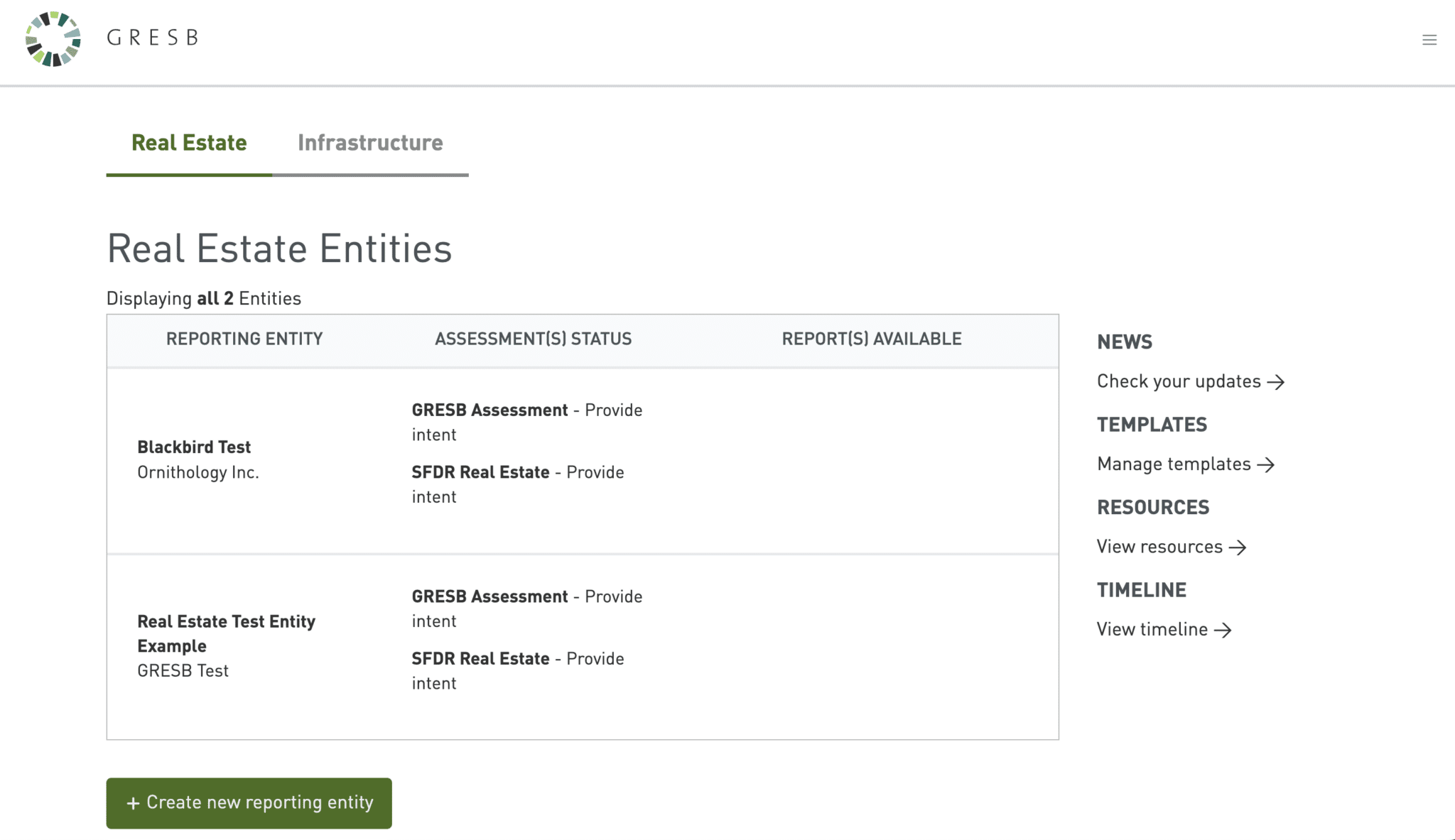
Once logged in, you can create a new real estate entity by clicking on the button “Create new reporting entity," as shown in the screenshot below.&#x20;

<figure><img src="/files/eTZgxBaEz3vlVhVFabJb" alt=""><figcaption></figcaption></figure>

You will then be asked to complete some information about the entity.&#x20;

<figure><img src="/files/6JJbs1AmDHzmOLWHZ94f" alt=""><figcaption></figcaption></figure>

The entity will now appear in your "Real Estate Entities" summary page.

If you need to make any **changes** to the entity characteristics, you can do so by going to the assessment overview page for the entity and clicking on “Manage entity” in the menu on the right.&#x20;

<figure><img src="/files/r7zLtDcaB55HQ6rBlZ7W" alt=""><figcaption></figcaption></figure>

</details>

<details>

<summary><strong>Add and Manage Users</strong></summary>

To view and contribute to an entity's assessment submission, your GRESB Portal account must be registered as one of the entity's 'users.'&#x20;

{% hint style="info" %}
If you created a GRESB Portal account but do not see any entities, you have not yet been added as a user.
{% endhint %}

There is no limit to the number of users each entity can have.

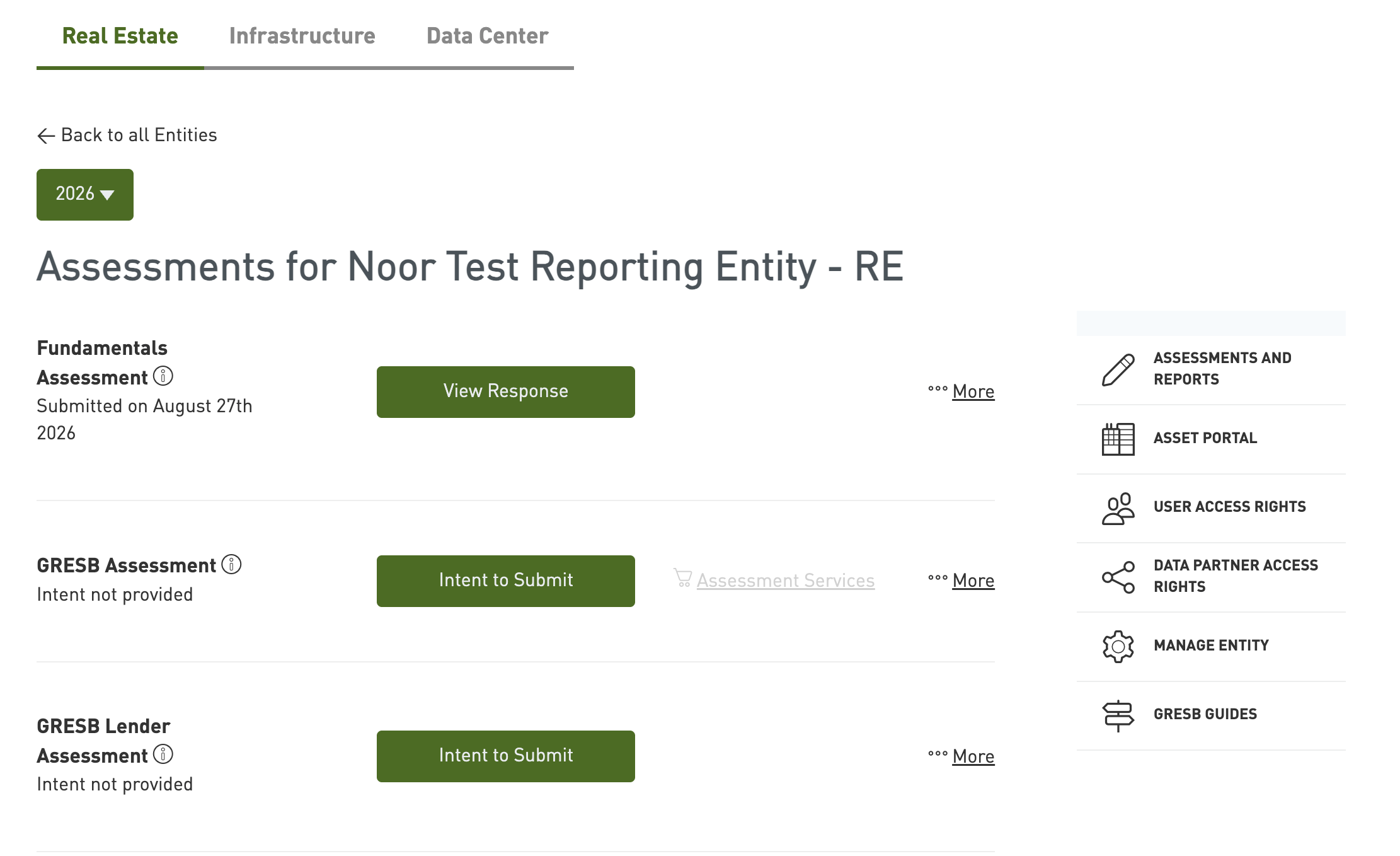
When you log into the GRESB Portal, you’ll see the Assessment Portal overview, as in the example screenshot below.

<figure><img src="https://files.synap.ac/production/EMnT7h7kXj/bTElofBJaGaC3E7RVZV15_RE-3.3-1.png" alt=""><figcaption></figcaption></figure>

Next, click on the entity for which you want to change the users. You will see the view below.&#x20;

Click on “**User Access Rights**” in the menu on the right side to view the users with access to the entity. The screenshot outlines this in red.

<figure><img src="/files/xmTIEmpDMVcjCrvShqVc" alt=""><figcaption></figcaption></figure>

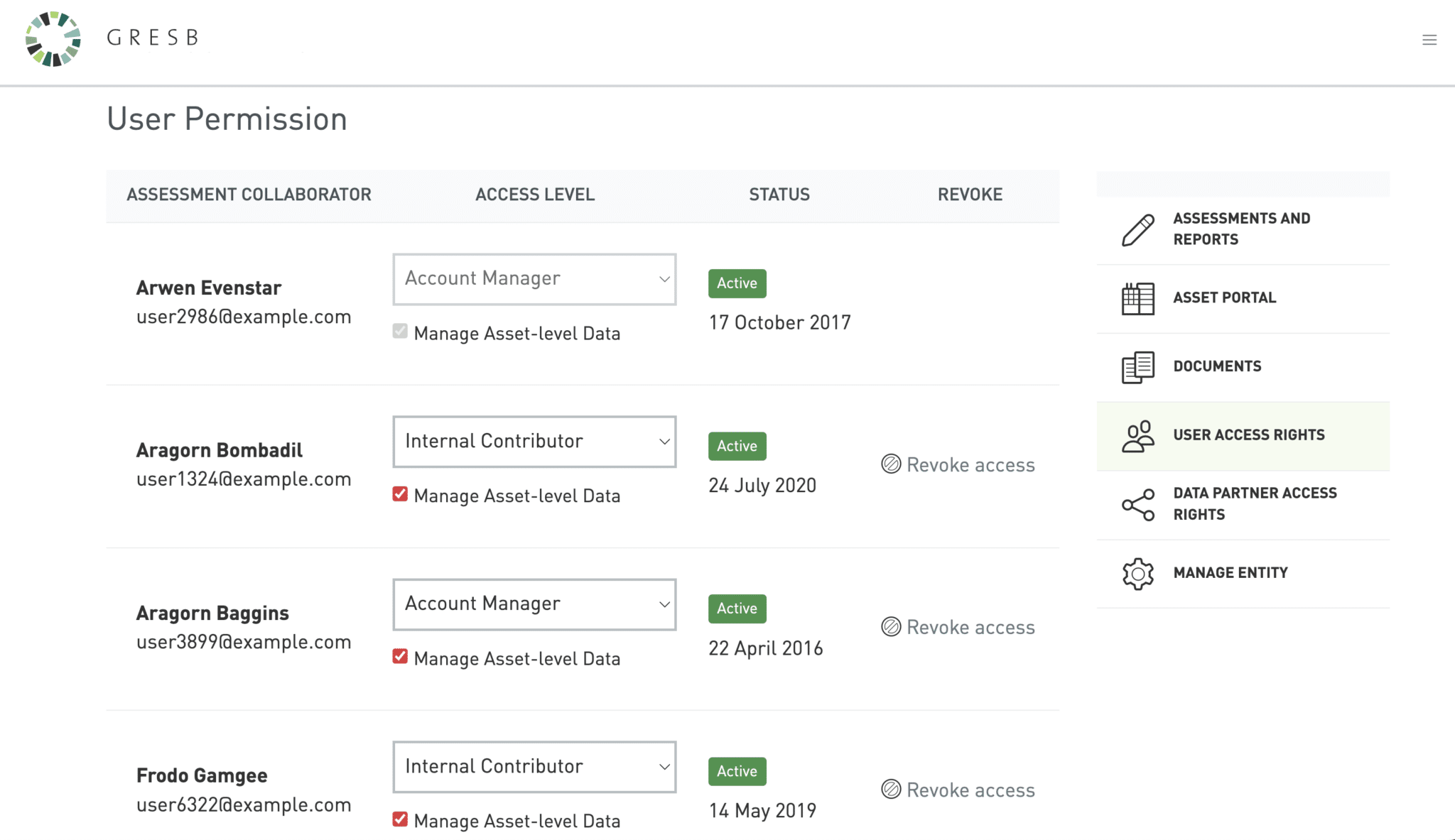
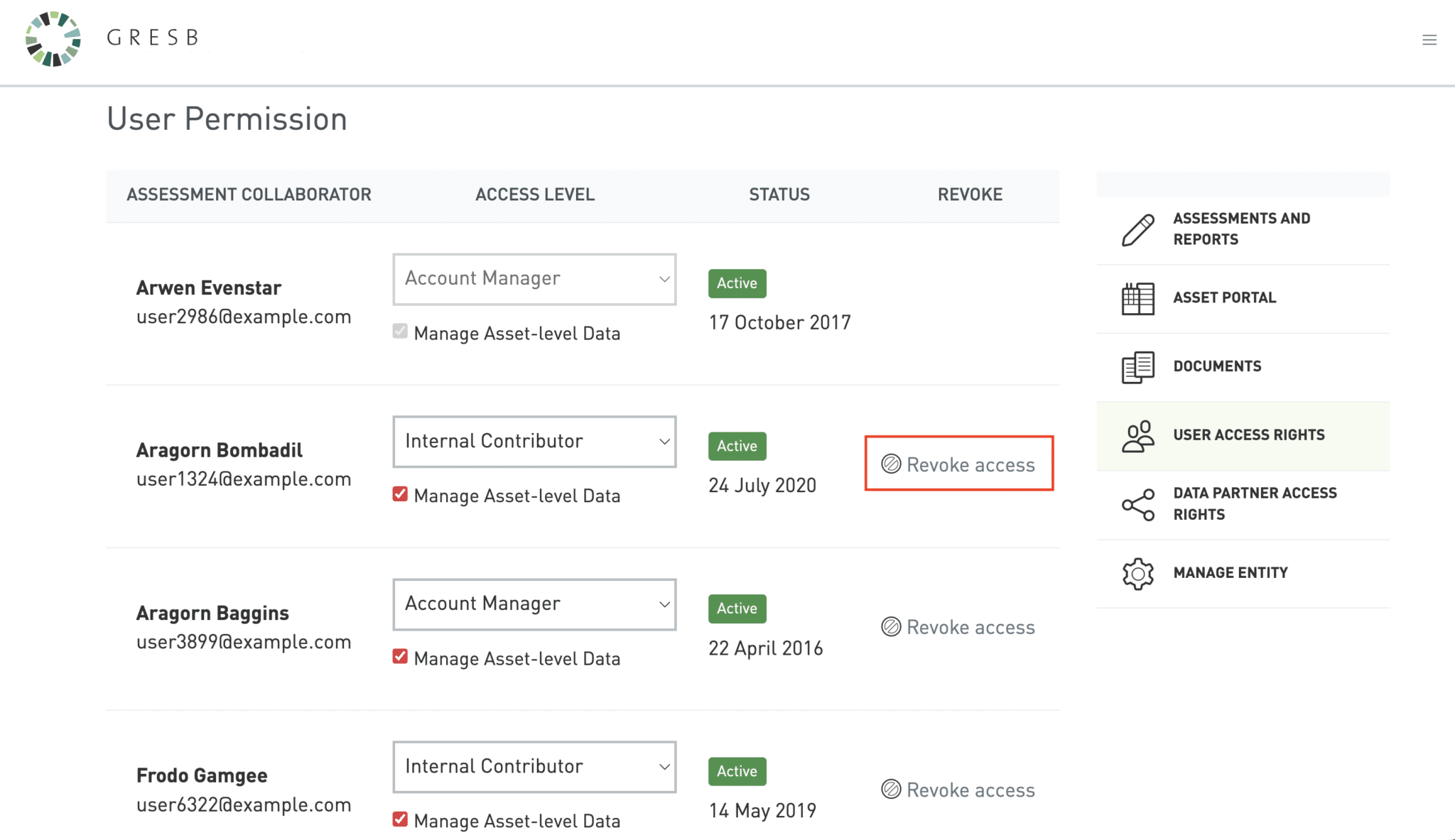
You will then see the users of the entity.

<figure><img src="https://files.synap.ac/production/EMnT7h7kXj/jbIZ8Xyxe1sQD5z_wt3TL_RE-3.3-4.png" alt=""><figcaption></figcaption></figure>

If you’re an Account Manager for the entity, you can change the access levels for other users, add users, and remove users.

#### **Adding Users**

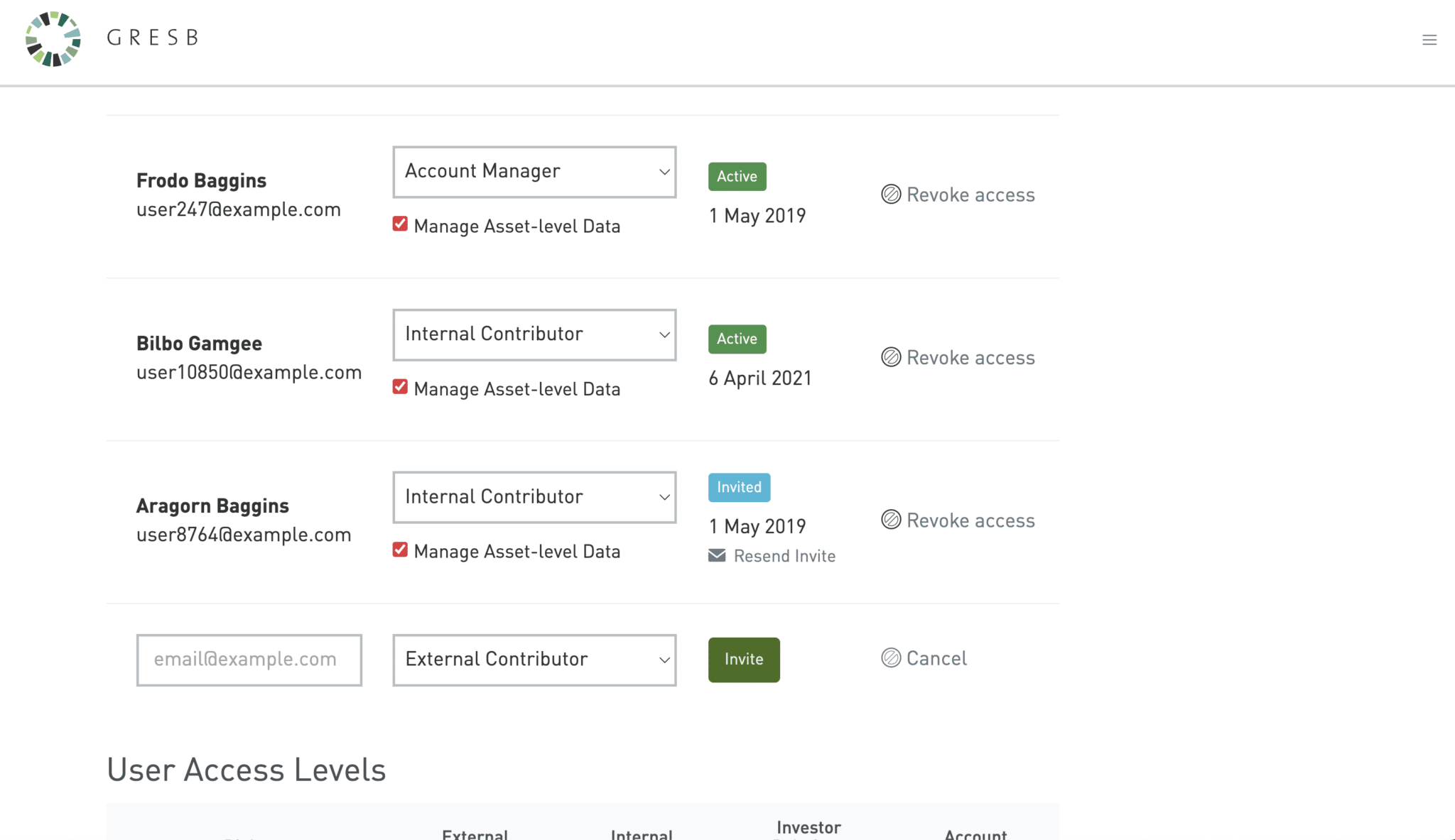
Within the list of users is an ‘Invite’ button. Click on this to start adding a new user.&#x20;

You can enter the email address of the person you want to add and set their access level.&#x20;

<figure><img src="https://files.synap.ac/production/EMnT7h7kXj/xkO5G-Dn9pBtK2z1mRSzc_RE-3.3-5.png" alt=""><figcaption></figcaption></figure>

If the user has not yet set up an account on the GRESB Portal, they must do so first. Once they’ve activated their account, they can access your entity.

#### **Removing Users**

A user can be removed from a particular entity by clicking ‘Revoke access,’ highlighted in the screenshot below.&#x20;

<figure><img src="https://files.synap.ac/production/EMnT7h7kXj/crX03JReAvJtqM3U7-gl0_RE-3.3-6.png" alt=""><figcaption></figcaption></figure>

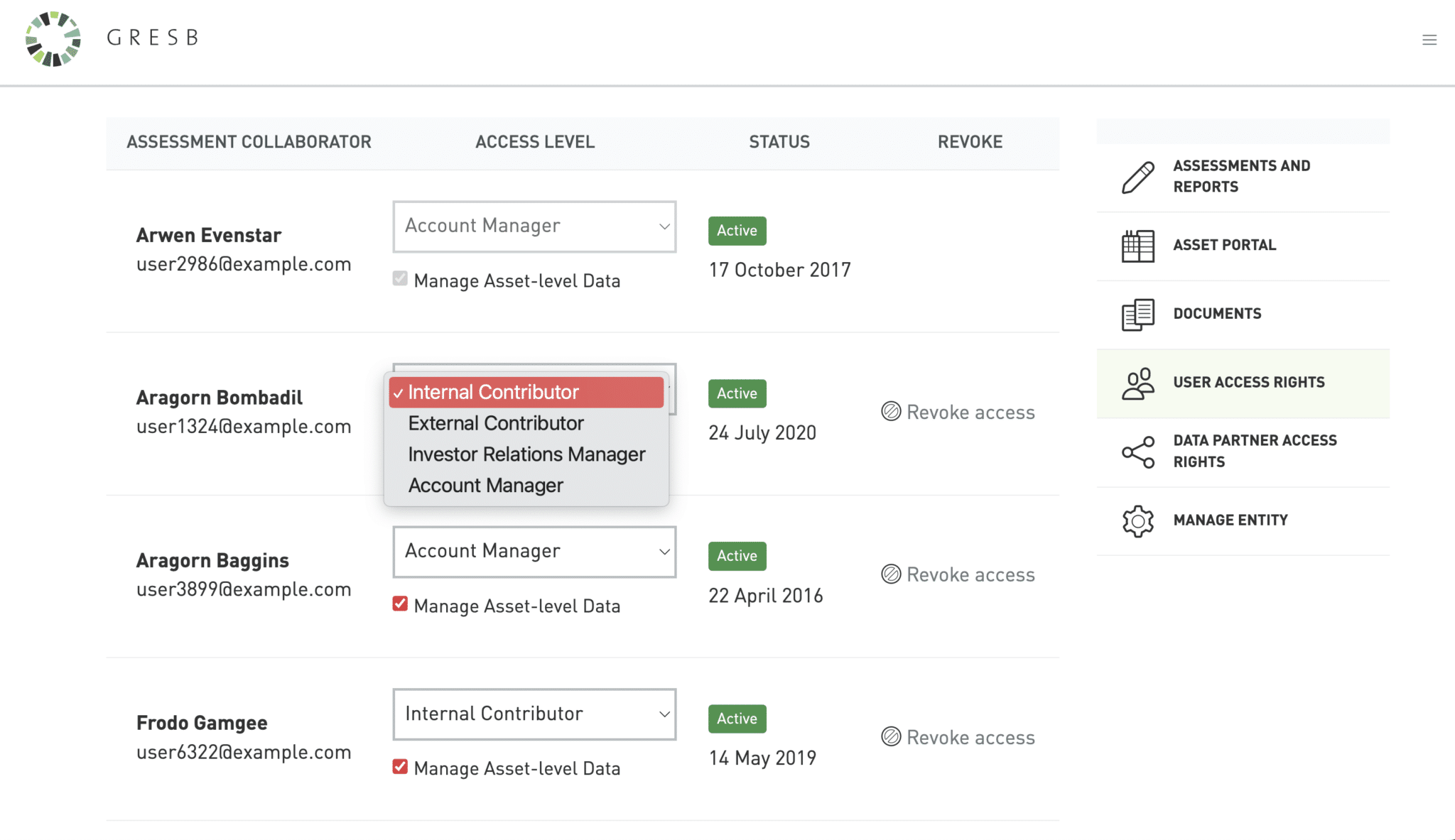
#### **Changing Access Levels**

The user's access level can be selected from the dropdown menu, as shown in the screenshot below. For more details on each access level, see the "User Access Rights" section below.
<figure><img src="https://files.synap.ac/production/EMnT7h7kXj/jFvLeGVqt9NRXbTVzfRYK_RE-3.3-7.png" alt=""><figcaption></figcaption></figure>

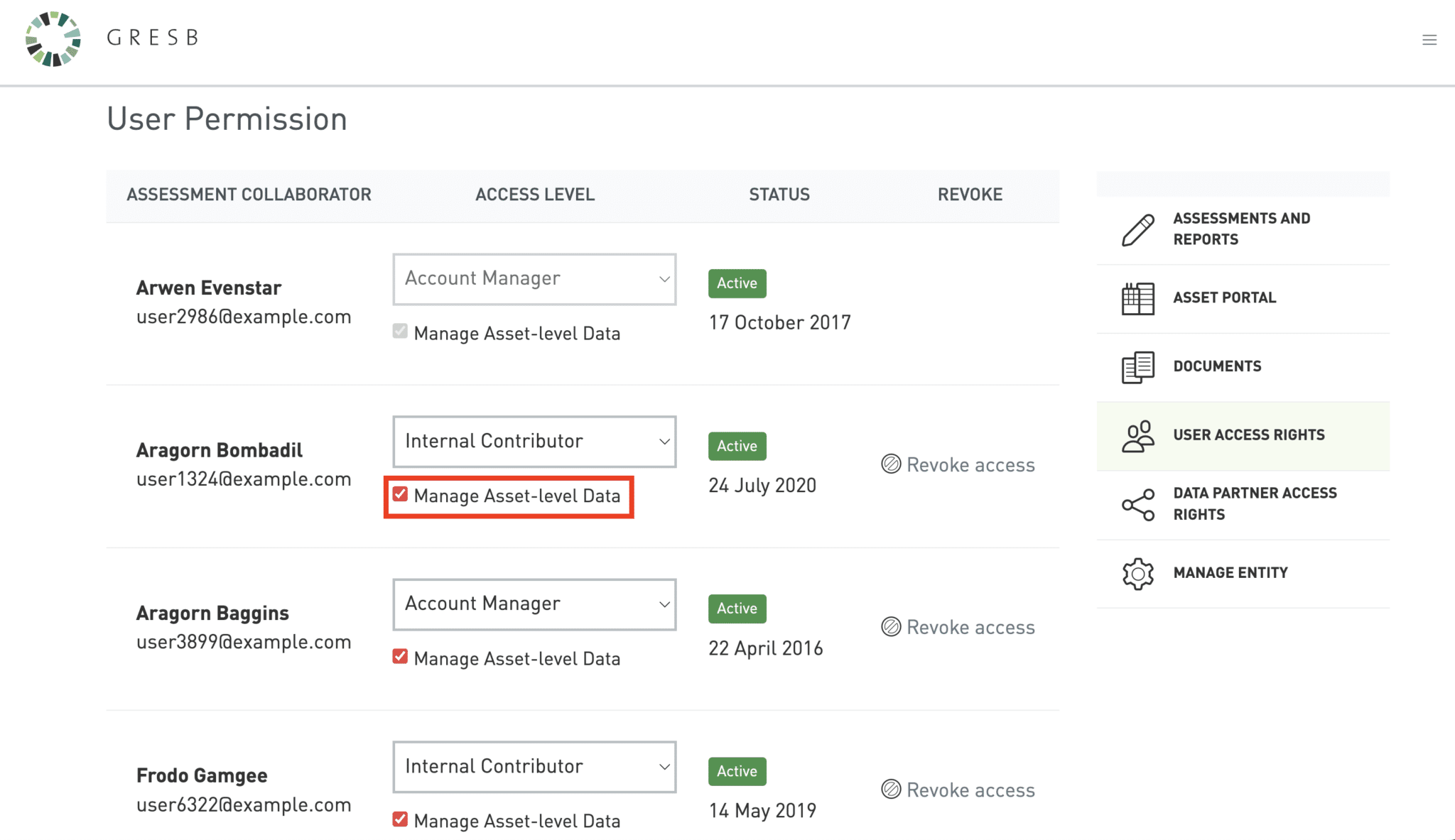
You can also separately indicate whether a user should be able to amend asset-level data, as shown in the screenshot below.
<figure><img src="https://files.synap.ac/production/EMnT7h7kXj/2Z-gsChwDFBCYXEeDHP7i_RE-3.3-9.png" alt=""><figcaption></figcaption></figure>

#### **User Access Rights**

<figure><img src="/files/zpCtIBXHyNtJnuqyrnKH" alt=""><figcaption></figcaption></figure>

</details>
{% endstep %}

{% step %}

### Manage Assessments

<details>

<summary><strong>Assessment Summary Page</strong></summary>

Once you've created an entity, you can manage its assessments from within the assessment summary page.

{% hint style="info" %}
If the Fundamentals Assessment is not visible within your entity summary page, please contact your GRESB account manager or email <info@gresb.com>.
{% endhint %}

<figure><img src="/files/K5a9fQ9CgJHekPFkie6x" alt=""><figcaption></figcaption></figure>

</details>

<details>

<summary><strong>Intent to Submit</strong> </summary>

Before starting an assessment, you will first be asked to provide your **intent** to submit the assessment to GRESB.&#x20;

This information is not binding and can be edited later, but will be shared with the entity's GRESB Investor Members.

<figure><img src="/files/nshPDYlsefFCqKfA8z9z" alt=""><figcaption></figcaption></figure>

Select ‘Yes’ if you fully intend to submit. Otherwise, select ‘Maybe’ or ‘No.’​

</details>
{% endstep %}

{% step %}

### Complete the Assessment

<details>

<summary><strong>Start the Assessment</strong></summary>

Click "Start Assessment" after providing your intent to submit.&#x20;

Participants can begin their Fundamentals submission **at any point during the year** in which they purchased the assessment.

<figure><img src="/files/PXVgFRcbTvn1xm31jlhi" alt=""><figcaption></figcaption></figure>

</details>

<details>

<summary><strong>Editing the Response</strong> </summary>

Click "Edit response" to complete the assessment.

Every indicator is identified by a short title (e.g., Sustainability Objectives) and a code (e.g., RLE2).&#x20;

All indicators include a primary question that can be answered with ‘Yes,’ ‘No,’ or 'Not Applicable' (in some cases).

* When selecting ‘Yes’, participants are required to provide further information by selecting one or more options.&#x20;
* When selecting ‘No’ or 'Not Applicable,' participants may not select any additional sub‑options.&#x20;

Participants should select all options that accurately describe the organizational activities.&#x20;

Response types for each indicator may use one or more of the following elements:

<table><thead><tr><th width="184.79296875">Element</th><th>Description</th></tr></thead><tbody><tr><td><strong>Yes, No, or Not Applicable radio buttons</strong></td><td>Some indicators have additional mutually exclusive radio buttons. In all cases participants must select the one that is the most applicable.<br>Some indicators also allow participants to select "Not Applicable." Selecting it will not earn the entity points towards that indicator. </td></tr><tr><td><strong>Checkboxes</strong></td><td>Most indicators contain a set of checkboxes that participants can select after answering ‘Yes’ to the overall indicator question. Participants may select multiple sub‑options that apply to their entity or fund manager.</td></tr><tr><td><strong>'Other’ answers</strong></td><td>Some indicators offer the opportunity to provide an alternative selection (‘Other’). Such ‘Other’ answers must be distinctly different to the options listed in the question. All answers are validated as part of the data validation process.</td></tr><tr><td><strong>Open text boxes</strong></td><td><p></p><p>GRESB distinguishes between two kinds of open text boxes:</p><p></p><ul><li>For reporting purposes only. These are displayed in the Benchmark Report but are not validated or scored.</li><li>Additional context for the answer provided. These are below the ‘Yes/No’ response and enable the participant to provide general comments that will appear on the Fundamentals Report but are not validated or scored.</li></ul></td></tr><tr><td><strong>Evidence upload</strong></td><td>Some indictors require participants to upload additional documentation to support their selections. A list of manually validated indicators can also be found in the Validation page.</td></tr></tbody></table>

</details>

<details>

<summary><strong>Review &#x26; Submit</strong></summary>

Click "Overview" on the left-hand navigation panel of your assessment response to review missing information (if any) and submit your assessment.

To submit:

1. All required information must be **complete**. The contents overview flags missing information. ​
2. The entity must be be **linked to a participant member account**. If you are uncertain whether the entity is linked, contact the [GRESB Helpdesk](mailto:@info@gresb.com).​

<figure><img src="/files/t1ktew14Y14K75sylEgw" alt=""><figcaption></figcaption></figure>

**A confirmation email will be sent to account manager users after submission.**&#x20;

<figure><img src="/files/5X7g1G4hT8kA5irZvjrj" alt=""><figcaption></figcaption></figure>

</details>

<details>

<summary><strong>Reopen &#x26; Resubmit the Response</strong></summary>

Click "Reopen & edit" to update the response of a submitted Fundamentals Assessment and receive a new result.&#x20;

**Re-submission is only possible once** GRESB completes the validation process and issues the Fundamentals Report for the previous attempt. Participants may re-open and re-submit  regardless of whether the entity passed its previous attempt.

{% hint style="info" %}
Reopening may be appropriate if the entity did not pass and has since strengthened its management practices, or if it has made material updates to its management practices and would like its submission to reflect those changes.
{% endhint %}

The re-opened assessment will be pre-filled with previous assessment data.&#x20;

Re-submit it once updates are complete.

{% hint style="info" %}
Note that the Fundamentals Report for the previous submission will remain valid until the new submission is complete.
{% endhint %}

</details>
{% endstep %}
{% endstepper %}

### Frequently Asked Questions

<details>

<summary>Where can I find my Fund ID?</summary>

The Fund ID is the first number that appears in the URL after "entities/" when you click on any of your entities in the GRESB Portal.

<figure><img src="/spaces/31ovOsfsdlwYDiJclXFF/files/en7MF6L6PbO6eFGAujh3" alt=""><figcaption></figcaption></figure>

Users can also export fund IDs from within the **Data Exporter** tool. Users can access the Data Exporter via the GRESB Portal under the menu “Data Exports.” Any downloads from the Data Exporter have Fund ID as the third column.

</details>

<details>

<summary>What process does GRESB recommend to transfer an existing fund from one manager to another manager?</summary>

Participants have two options to transfer an existing reporting entity from one manager to another.

**Option 1:** The manager that has historically reported to GRESB could essentially 'hand its keys' to the new manager. The acquiring manager would oversee the existing entity's account. In this case, please contact the GRESB Helpdesk to support legal/administrative considerations.

<table><thead><tr><th width="112.24609375"></th><th></th></tr></thead><tbody><tr><td><strong>Benefits</strong></td><td>The reporting burden is minimal. Pre-filling, participation records, and asset-level data will all be maintained in the Portal. The new manager wouldn't need to start anything from scratch. </td></tr><tr><td><strong>Potential Limitations</strong></td><td><p>Privacy risks. If you proceed with option 1, the previous owner would need to understand that the new manager will have access to <em>everything</em> in the Portal associated with the reporting entity. That includes a record of ALS imports, pre-submission check comments, evidence uploads, asset data, etc. </p><p></p><p>The investor members linked to the account would also maintain access unless the new fund revokes it.</p></td></tr></tbody></table>

**Option 2:** Create a new reporting entity.

<table><thead><tr><th width="112.1171875"></th><th></th></tr></thead><tbody><tr><td><strong>Benefits</strong></td><td>None of the privacy concerns outlined above apply.</td></tr><tr><td><strong>Potential Limitations</strong></td><td><p>The reporting burden is higher. The new manager could obtain an export of the entity's current Asset Portal data from the previous manager to reduce some of the effort required to populate asset-level data from scratch. Otherwise, the new manager would need to complete a new assessment.</p><p></p><p>Participation history would not be visible; the Benchmark Report will essentially look like the entity is a first-year participant. But, given it technically isn't a first-year participant, the entity couldn't use the Grace Period.</p></td></tr></tbody></table>

</details>


---

# Agent Instructions: Querying This Documentation

If you need additional information that is not directly available in this page, you can query the documentation dynamically by asking a question.

Perform an HTTP GET request on the current page URL with the `ask` query parameter:

```
GET https://guides.gresb.com/fundamentals/getting-started/assessment-portal-guide.md?ask=<question>
```

The question should be specific, self-contained, and written in natural language.
The response will contain a direct answer to the question and relevant excerpts and sources from the documentation.

Use this mechanism when the answer is not explicitly present in the current page, you need clarification or additional context, or you want to retrieve related documentation sections.